Make GIFs with text
The StiGirl GIF Studio turns your video into a Telegram GIF and lays your text across every frame. Upload the video or send it to the bot, cut 1 to 6 seconds out of it, and pick the GIF up in the bot's chat.
How does it work?
Open the @StiGirlBot bot and pick GIF Studio in the app.
Choose a video from your gallery or send it to the bot.
Use “Trim” to cut the 1 to 6 second piece.
Tap “Text” to write on your GIF — pick the font, color, frame and where it sits.
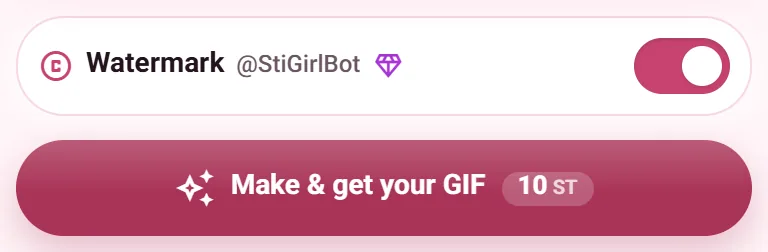
Tap “Make & get your GIF” and the GIF arrives in the bot's chat.
Specs
- GIF length
- 1 to 6 seconds, no sound
- Dimensions
- Square or the video's original size
- Text on the GIF
- Your choice of font and color, a backdrop behind the text, and the text where you want it
- Cost
- Making a GIF costs 10ST and writing on it 10ST; free with Premium
Step-by-step guide with screenshots
In GIF Studio, tap “Choose a video from your gallery”, or send the video to the @StiGirlBot bot and it shows up right there.
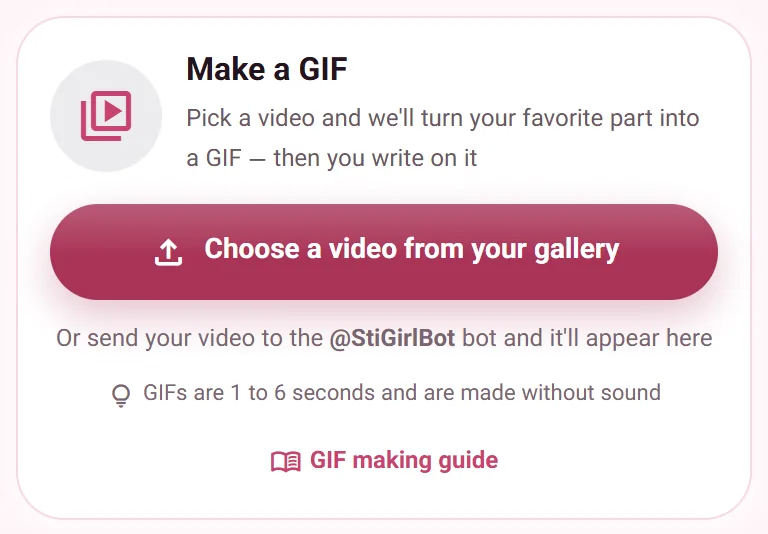
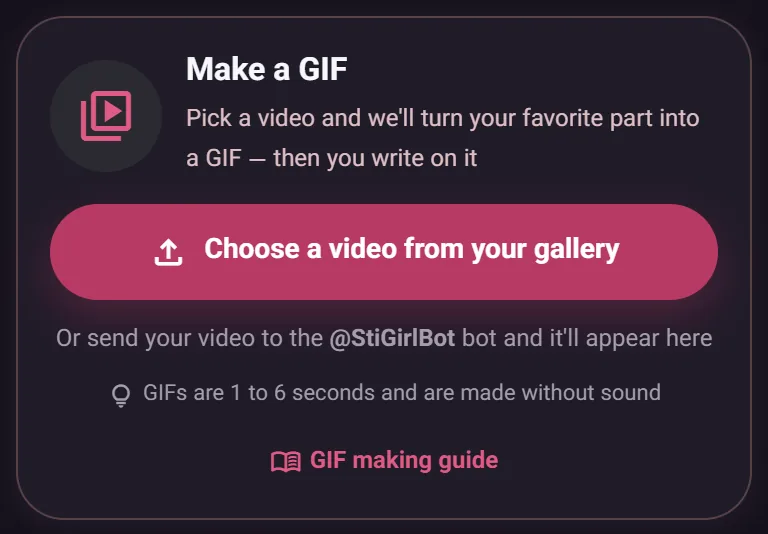
Use “Trim” to cut out the 1 to 6 second piece; the GIF is made without sound.
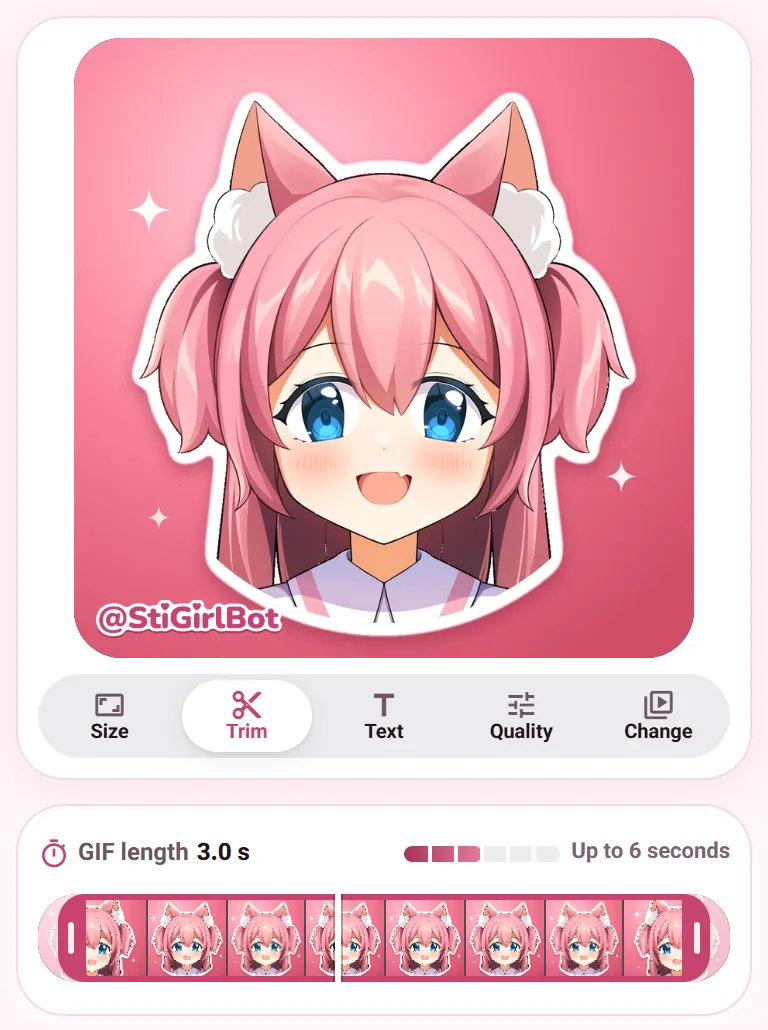
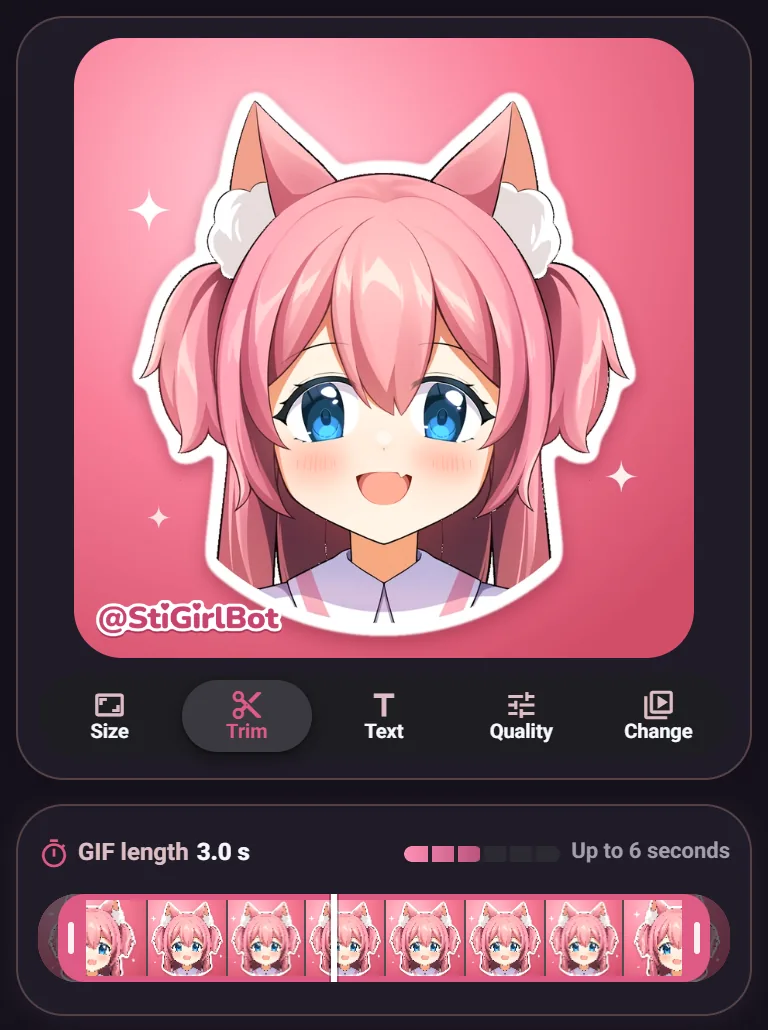
Set the GIF's shape, text and file size with “Size”, “Text” and “Quality”.
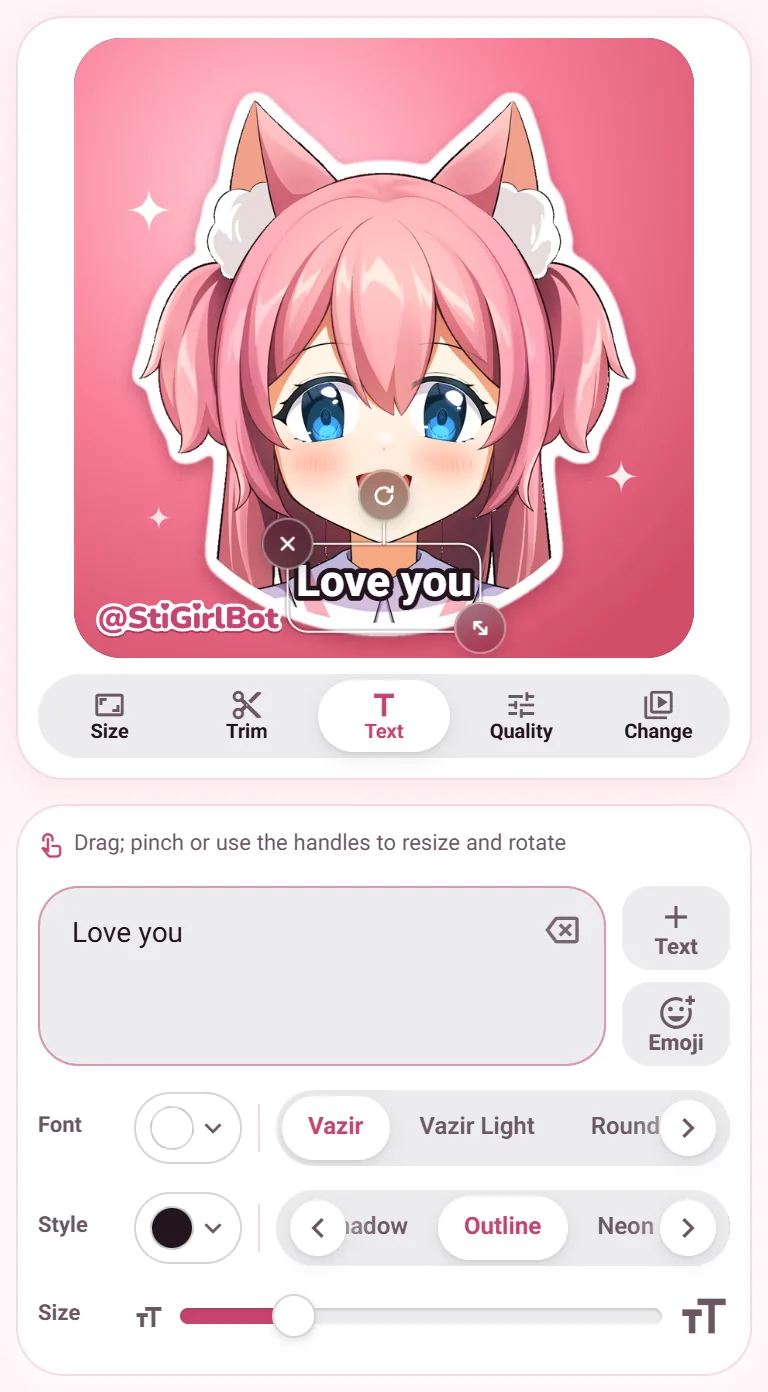
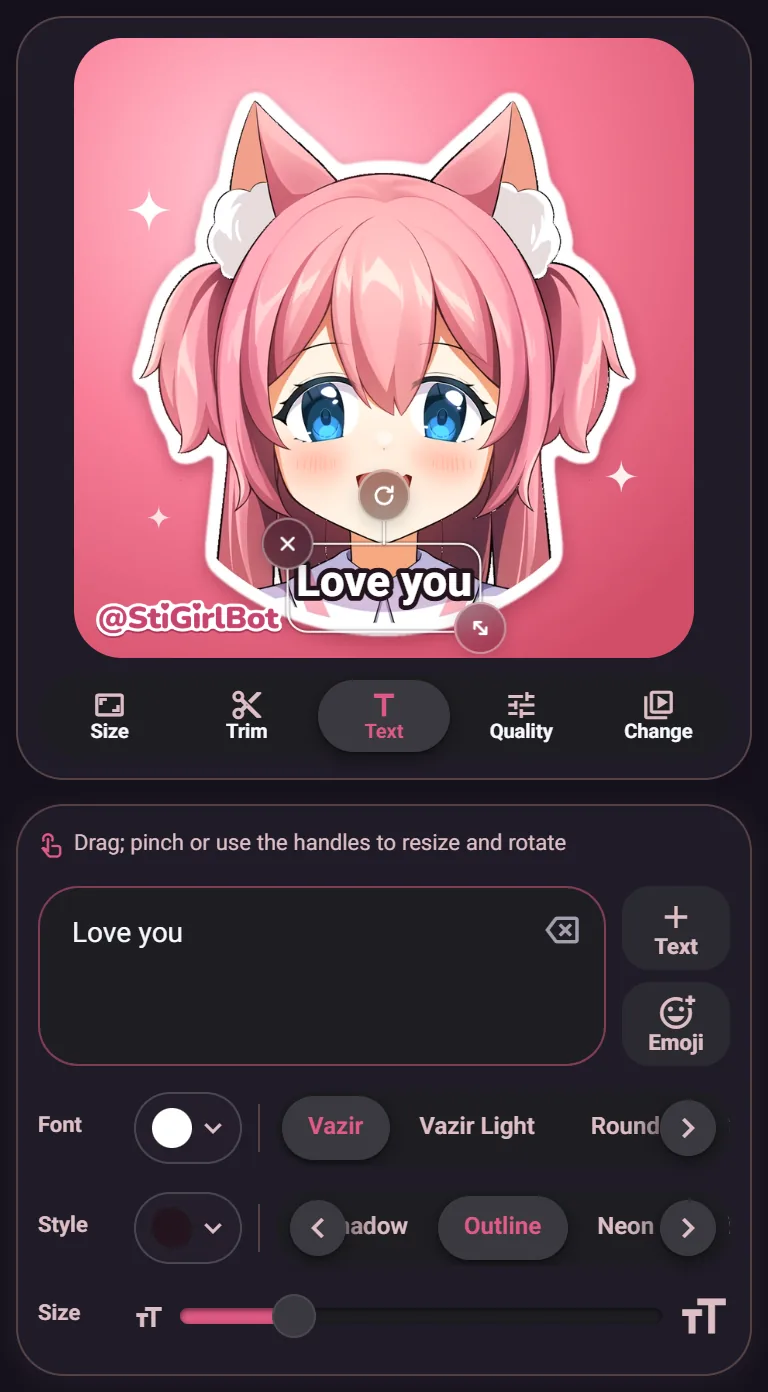
Tap “Make & get your GIF”; the GIF arrives in the bot's chat. Its cost is written right on that button.
Tutorials
How to Make a GIF in Telegram (From a Video, With Text)
Turn any video into a Telegram GIF with text — trim it to the right length, add a caption, and send it to any chat. No app install needed.
Common questions
What are the GIF limits?
Every GIF runs between 1 and 6 seconds and has no sound, so Telegram displays it as a GIF.
How do I add my sticker to Telegram?
After the sticker is made, tap “Add to Telegram”. The sticker goes into your personal pack and the pack's install link opens.
Why do I need to start the bot?
Telegram only lets users who have started the bot send it messages and GIFs and build sticker packs.
More StiGirl tools
StiGirl channel
Be first to see new packs, tips and news. Join the StiGirl channel and get a one-time gift of 5ST.